 UMOCloud
How to Upload Files to a Cloud Phone
Quick answer
Find the upload tool, verify file requirements, and locate files after transfer.
UMOCloud TeamPublished 2 min read
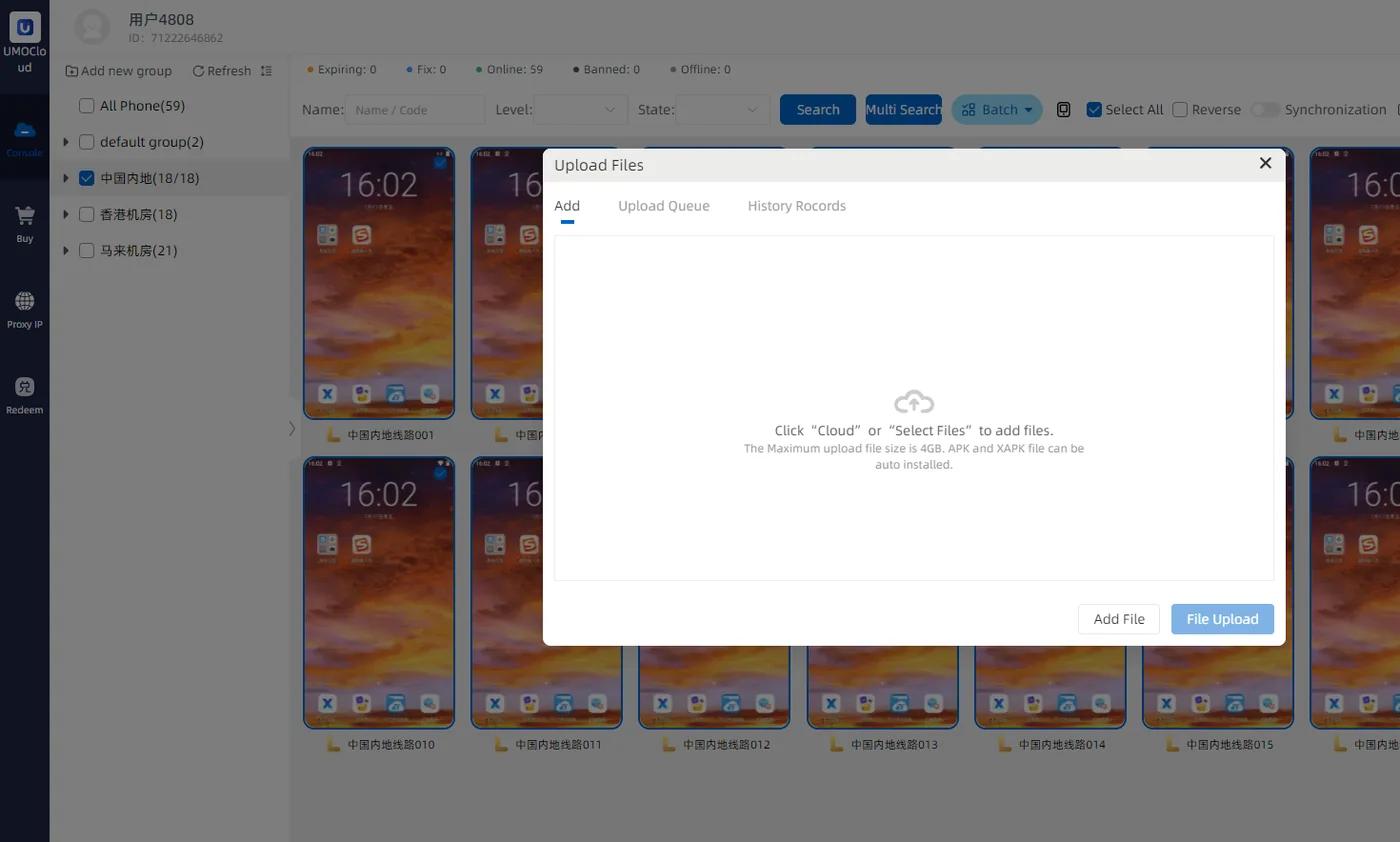
Open the file upload tool
Open the target cloud phone and choose file upload from the device toolbar. Verify that the source is trusted and that size and format match the target app.
Find the uploaded file
- Images and videos usually appear in media folders
- Open documents through the Android file manager
- APK files require a separate installation confirmation
- Test one device before distributing a file to a group
If an upload fails
Check connectivity, free storage, special characters in the file name, and format limits. Keep the session open until large transfers finish.